

Guide NaviBoss help
How to put NAVAREA warnings on your ECDIS as a user chart
Plan the route, take the NAVAREA warnings within your corridor, and download them as a user chart your ECDIS loads.
NaviBoss reads the live NAVAREA warnings and matches them to your route. In a few steps they go onto your ECDIS as a user chart, so the warnings near the track are on the chart, not only on paper.
#Steps
Plan your route
Type the Departure Port and the Arrival Port, pick each from the list, and press Plan route. See plan your first route.
Open Warnings
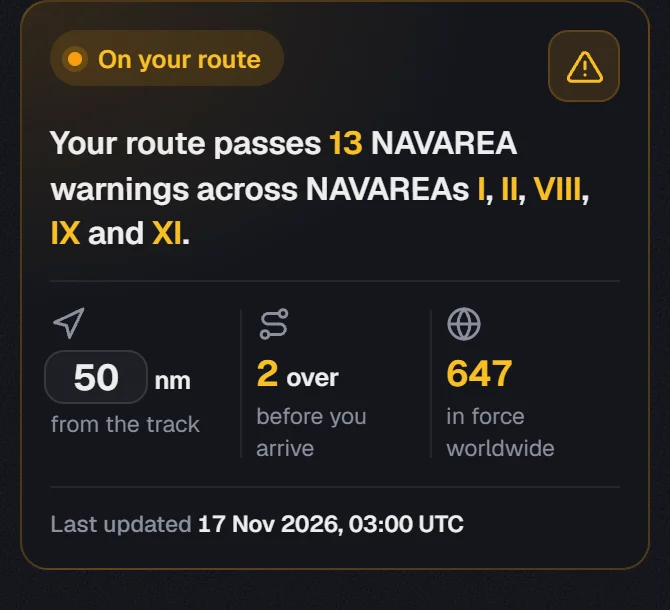
Press Warnings in the rail. The briefing says how many warnings are within your corridor of the track.
Set your corridor
The box in the briefing is how far either side of the track to look, in nm. 50 nm is a good start on an ocean passage.
Choose User chart for your ECDIS
Press Export above the list, then User chart for your ECDIS.
Pick your ECDIS and download
Under For, pick your ECDIS make, then press Download user chart. Load the file with your ECDIS's user chart import, as its manual describes.
About our guides
NaviBoss guides are written and checked by maritime industry experts, masters and deck officers. Each one is built from the same data the planner uses, dated, and rebuilt when that data changes. Spotted something wrong? Tell us on the feedback board.
A planning aid, not for navigation. Check official charts and publications, the latest notices and your company's instructions before you rely on any figure here.
Free Ready when you are
Do it on your own voyage
Free account, no card. The tour walks you through it in the planner.
Start the tourFree account · no card