

Guide NaviBoss help
How to show and hide layers on the chart
Use the Layers card to choose what the chart shows: ports, passage gates, warnings, piracy and environmental areas, currents and the forecast, ADMIRALTY coverage and DSC stations.
The Layers button sits at the bottom right of the chart. It opens one card with every layer NaviBoss can draw, grouped by tool, with Chart first. When something is on, the button shows how many, for example 3 on.
#The Layers card
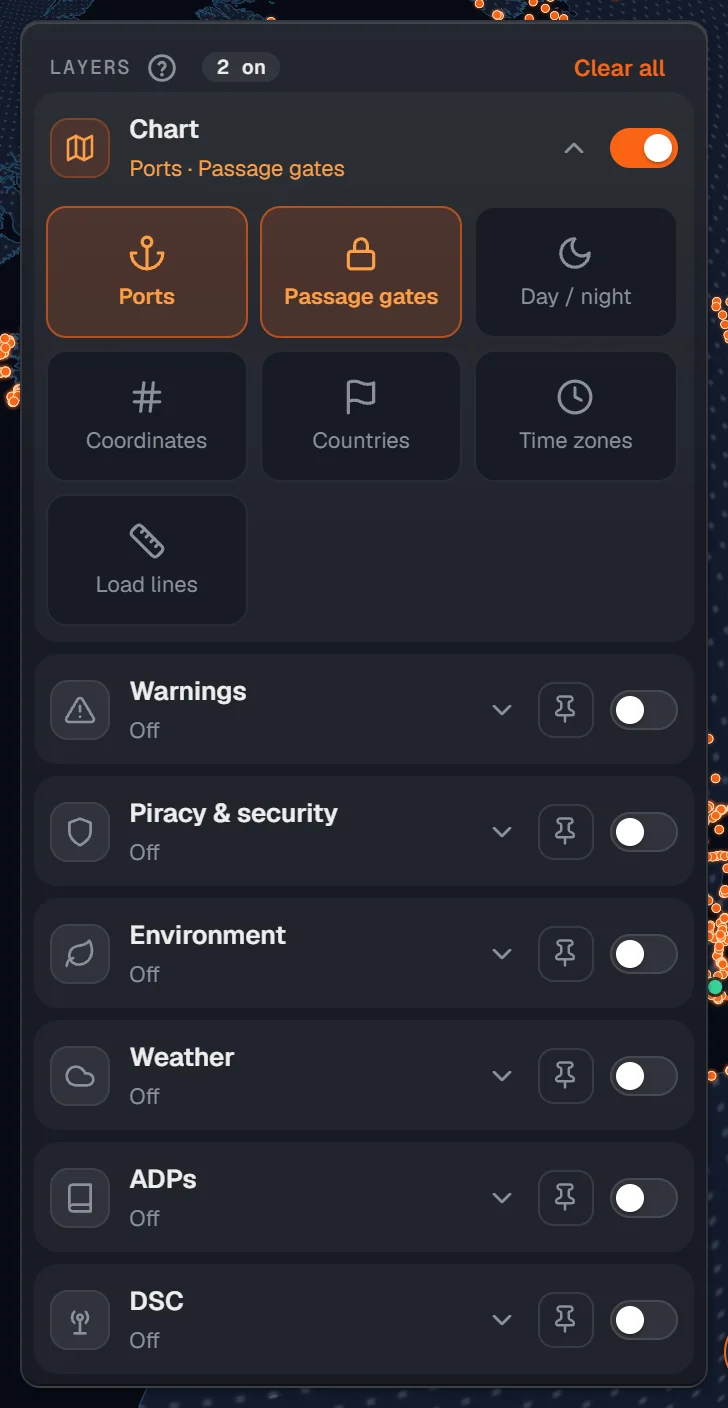
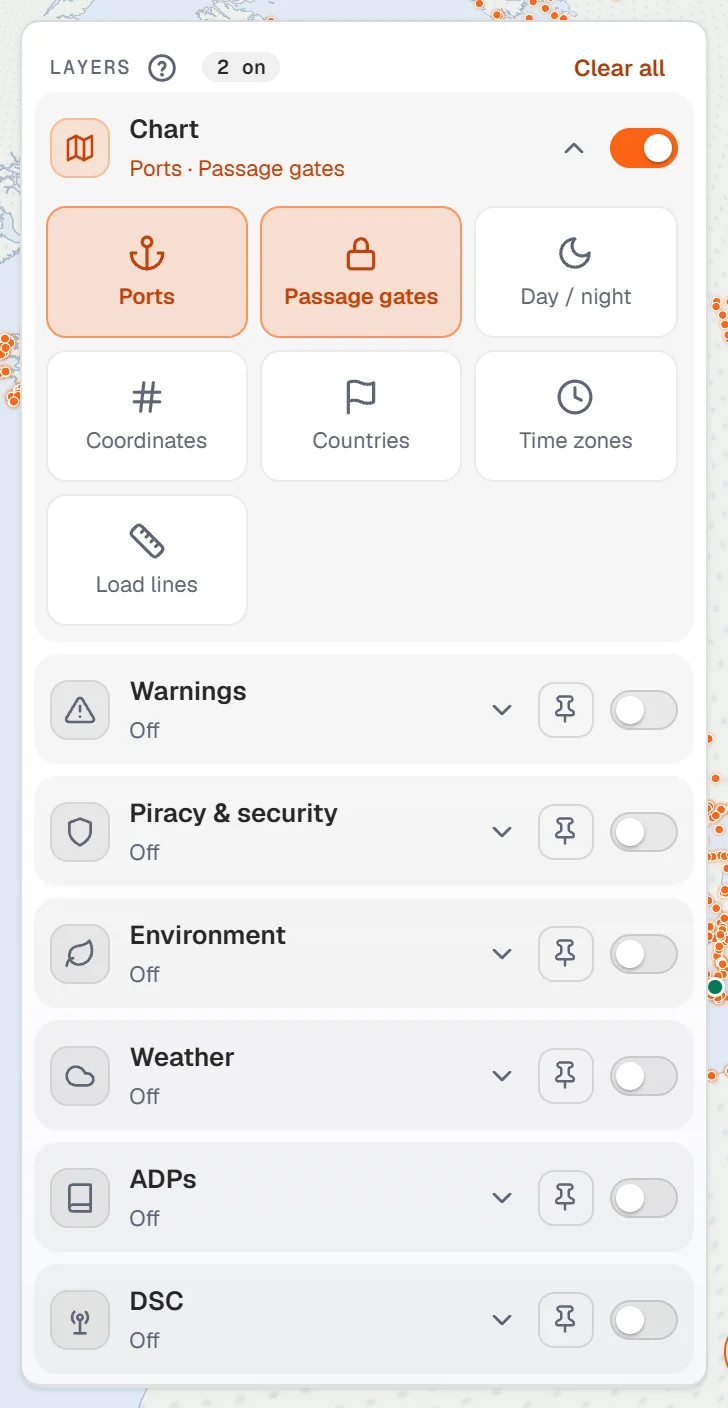
Press Layers
The card opens beside the button. Press Layers again, press anywhere else, or press Esc to close it.
Open a group
Press a group's name, for example Chart or Environment, to show its tiles. The line under the name says what is on.
Press a tile
Each tile shows or hides one layer. A filled tile is on the chart.
#The groups
- Chart: Ports, Passage gates (the padlocks you lock and open on a route), Day / night, Coordinates, Countries, Time zones and Load lines.
- Warnings: NAVAREA warnings, NAVAREA limits and NAVTEX stations.
- Piracy & security: HRA, Piracy hotspot, War risk (JWC), Warlike (ITF/IBF), VRA, Transit corridor and Latest incidents.
- Environment: ECA / SECA, Whale speed zones, HFO bans, Scrubber rules, MARPOL Special Areas and PSSA.
- Weather: Ocean currents or the Marine forecast.
- ADPs: the coverage of one ADMIRALTY publication at a time.
- DSC: DSC coast stations.
Weather and ADPs say One at a time: switching on a second tile there switches the first one off, so the chart never shows two at once.
#The group switch
The switch on the right of each group puts the whole group on or off. It is the same switch as On chart at the top of that tool, so either one does it.
Switch a group off and it remembers what was on. Its tiles show that with a dashed edge. Switch it on again and the same layers come back.
#The chart follows the tool
Open a tool and its layers come on the chart; the other tools' layers go off. The Chart group never changes when you change tools.
To keep a group on the chart while you work in another tool, press the pin beside its switch. A pinned group stays on whatever tool is open. The same pin sits beside On chart at the top of each tool.
#Clear all
Clear all at the top of the card switches every group off and folds them shut. The chart is left with the sea, the land and your route.
On a phone, Layers is in the bottom bar and the card opens as a sheet.
About our guides
NaviBoss guides are written and checked by maritime industry experts, masters and deck officers. Each one is built from the same data the planner uses, dated, and rebuilt when that data changes. Spotted something wrong? Tell us on the feedback board.
A planning aid, not for navigation. Check official charts and publications, the latest notices and your company's instructions before you rely on any figure here.
Free Ready when you are
Try Layers on your own chart
Free account, no card. It is on the planner's chart.
Open the plannerFree account · no card