
Account & licence NaviBoss help
How to activate NaviBoss Desktop on a bridge PC with no internet
The PC shows a QR code, your phone does the online part and downloads a licence file, and a USB stick carries that file back to the PC. The PC never goes online.
You need your licence key (it is in your payment email), a phone with internet, and a USB stick. A phone camera helps, but it is not a must. NaviBoss Desktop must already be installed on the bridge PC: see Install NaviBoss Desktop.
The bridge PC stays offline the whole time. No sign-in is needed on the phone: your licence key is the proof.
#On the bridge PC: get the QR code
Choose Bridge or ship PC
The first time NaviBoss opens, it asks Where is this PC? Choose Bridge or ship PC.
Type your licence key
On Type your licence key, type the key and press Next.
Say it has no internet
On Does this PC have internet?, press No, it's a bridge PC.
Leave the QR code on screen
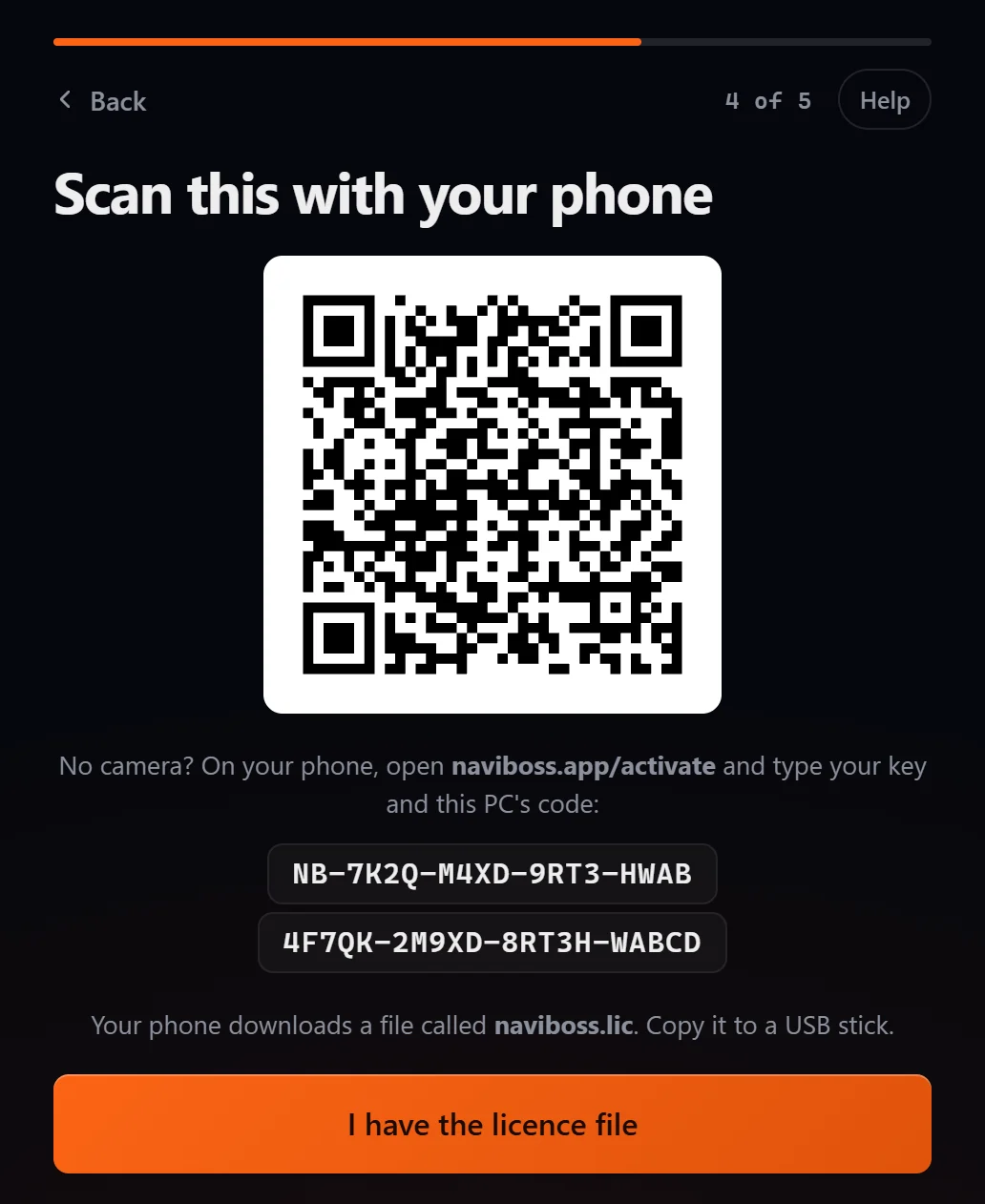
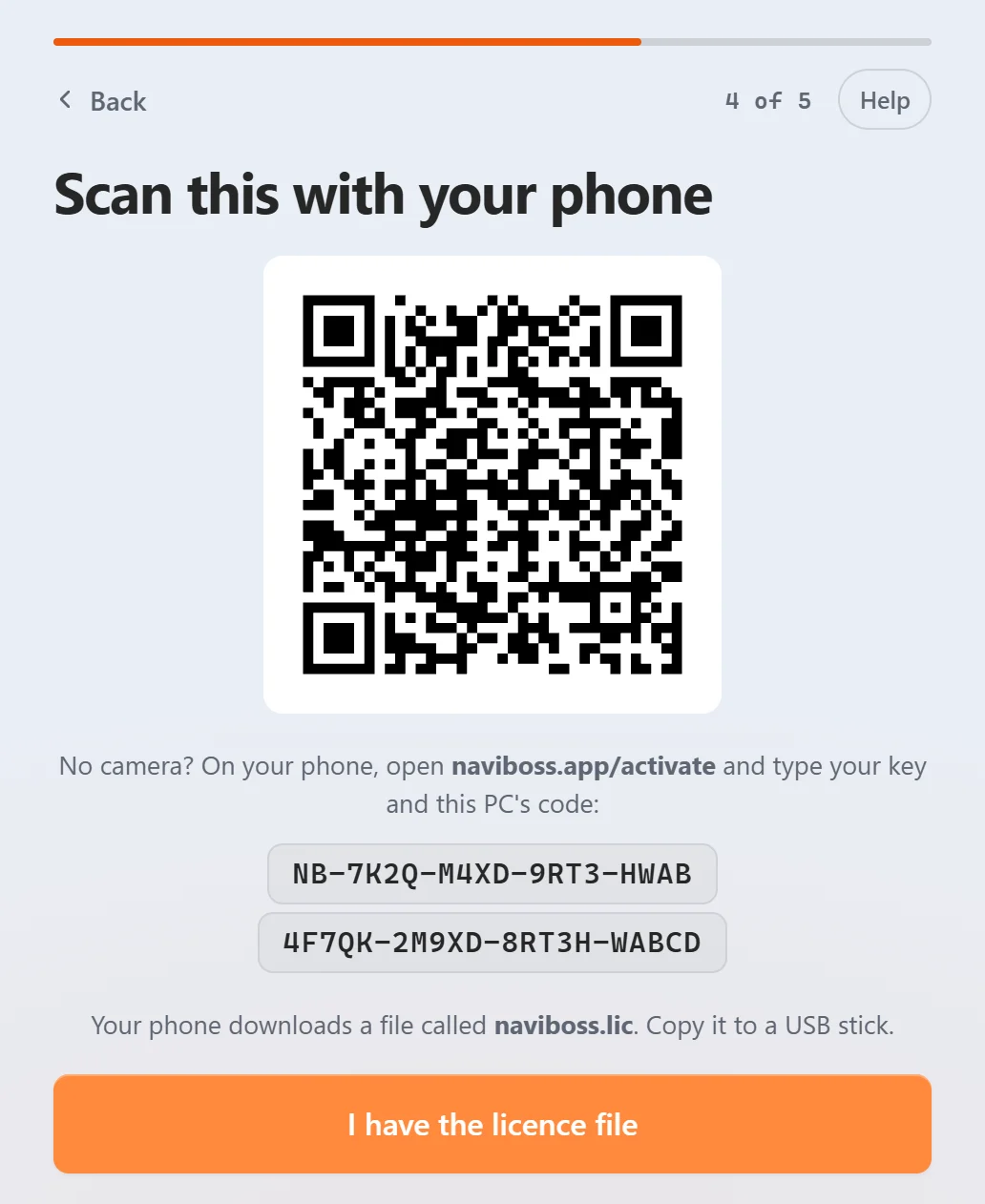
Scan this with your phone shows a QR code. Under it are your key and this PC's code: 20 letters and numbers, like
4F7QK-2M9XD-8RT3H-WABCD. Leave this screen open.
#On your phone: download the licence file
Scan the QR code
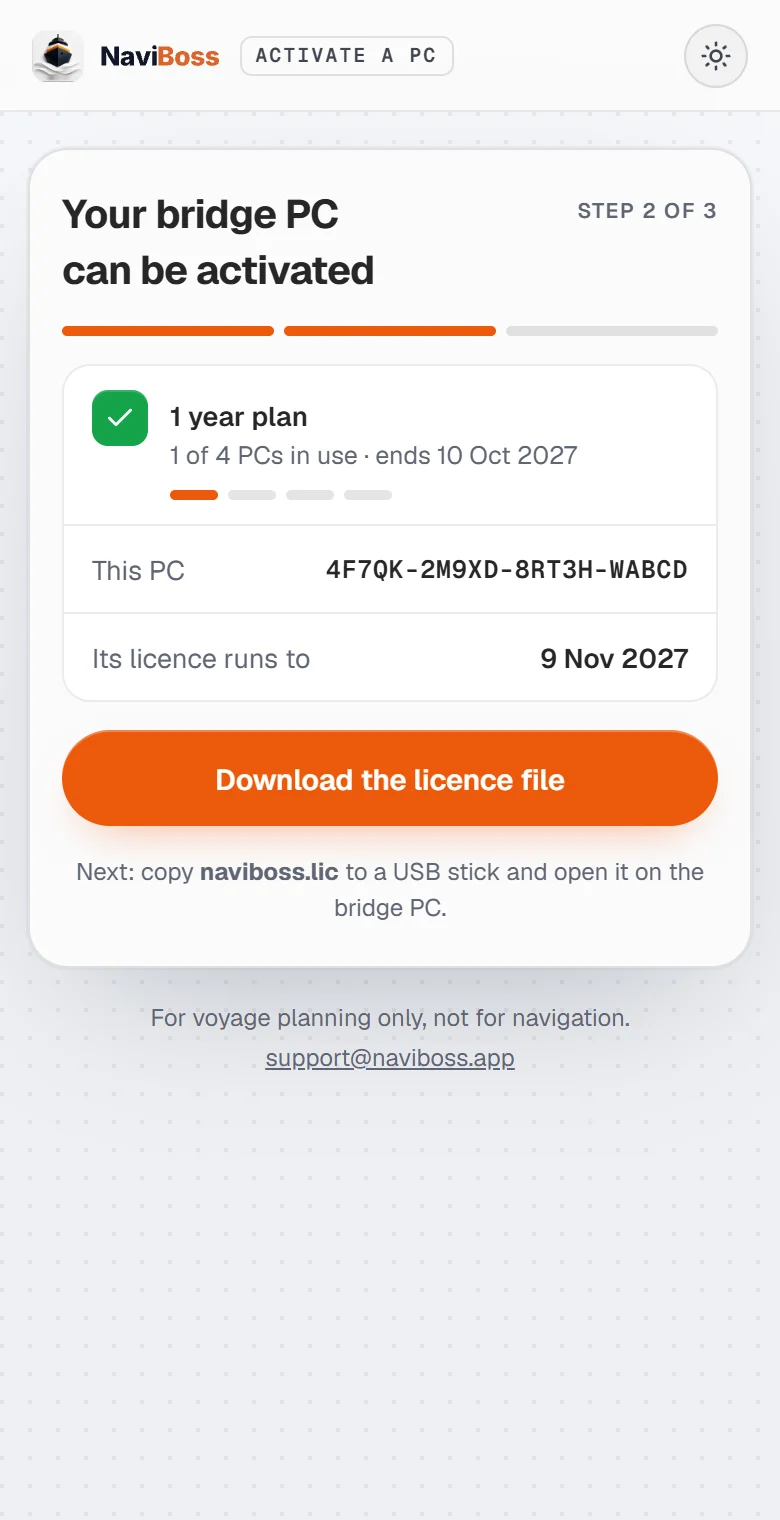
Point the phone's camera at the QR code and open the link. It opens naviboss.app/activate, titled Activate a bridge PC, and checks your key.
Download the file
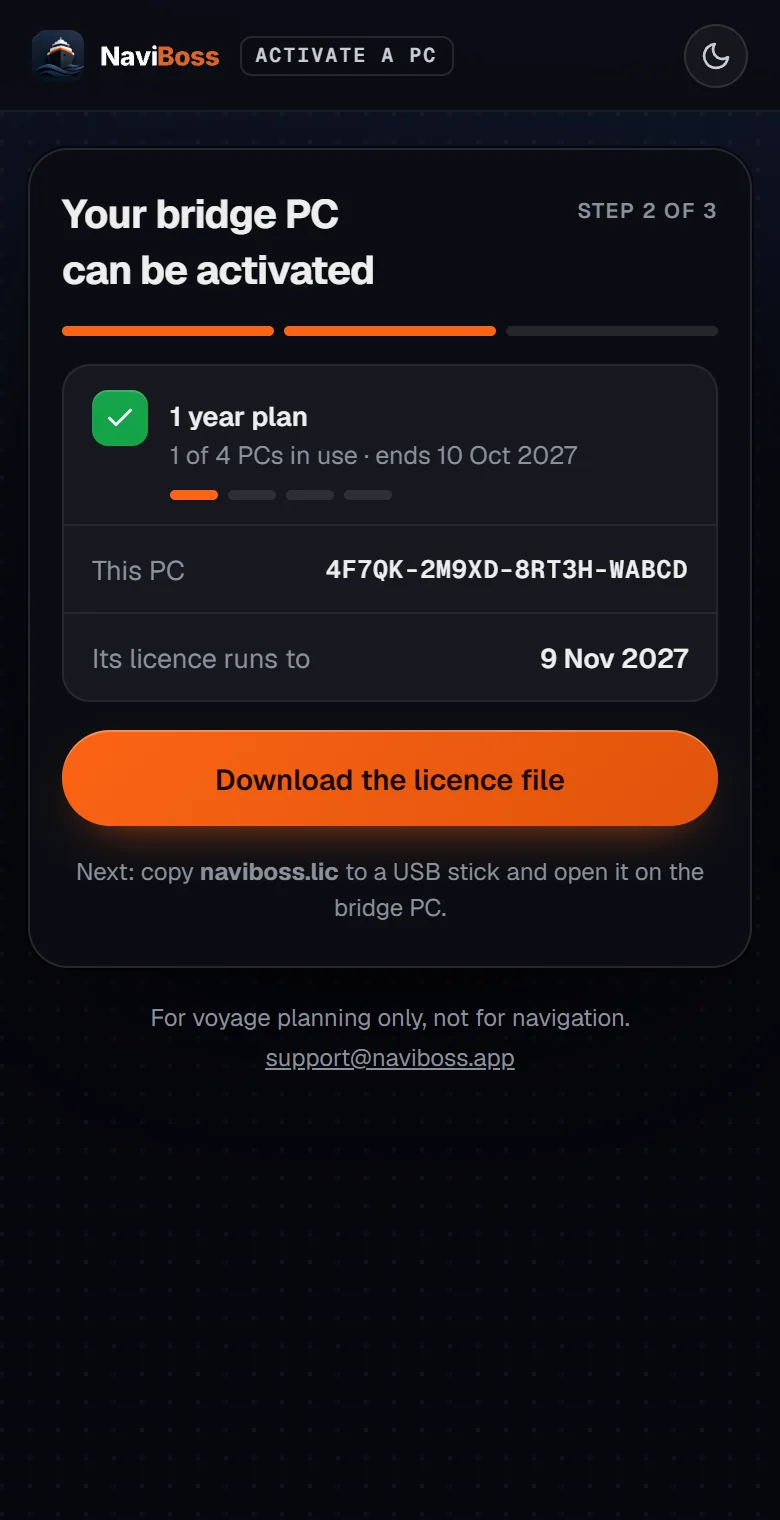
On Your bridge PC can be activated, press Download the licence file. The phone saves a file called naviboss.lic in its Downloads.
Copy it to a USB stick
On Now carry it to the bridge PC, the page shows the date the licence runs to. Copy naviboss.lic from the phone's Downloads to the USB stick. On an iPhone, it is in the Files app › Downloads.
#Back on the bridge PC: open the file
Press I have the licence file
On the QR screen, press I have the licence file.
Plug in the stick
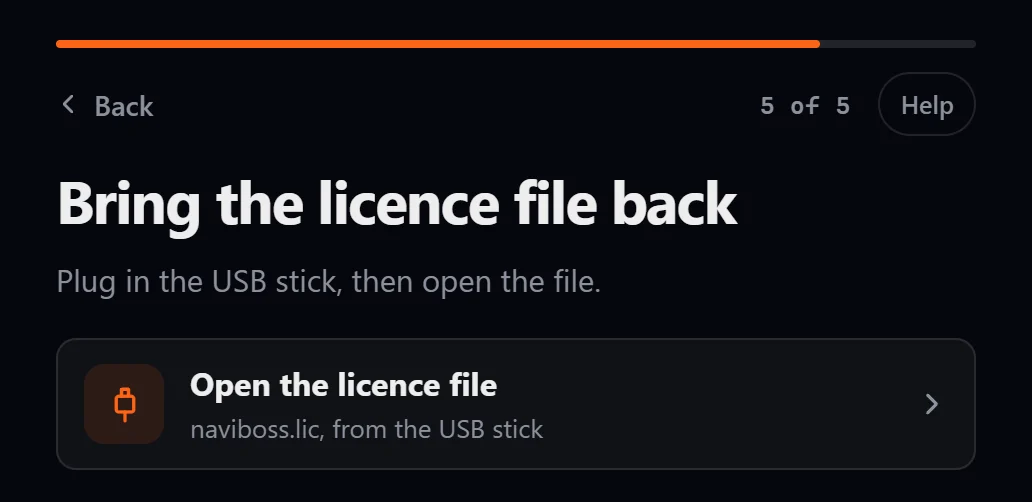
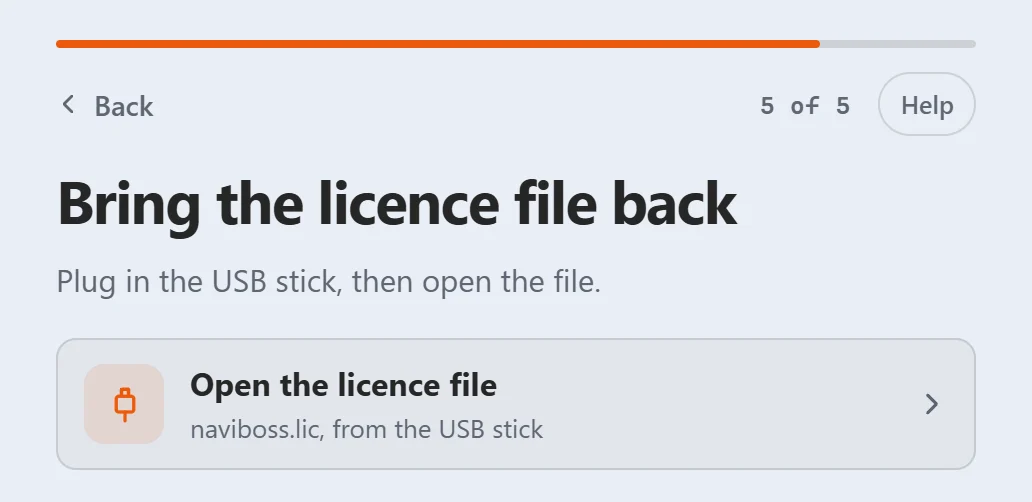
Bring the licence file back asks you to plug in the USB stick.
Open the licence file
Press Open the licence file and pick naviboss.lic on the stick.
Start planning
This PC is activated shows the date the licence runs until. Press Start planning.
#A phone with no camera
Type the two codes instead of scanning.
Open the activate page
On the phone, go to naviboss.app/activate.
Type the key and the PC code
Fill in Licence key (from your payment email) and PC code (the 20 letters and numbers under the QR code on the bridge PC). Press Check.
Carry on as with a scan
From here it is the same: download the file and open it on the PC.
The PC code is also in NaviBoss under Settings › License & data › This PC, with a Copy button.
#If something goes wrong
- "This PC is already activated" on the phone. The PC already has a place on your plan. Press Download its licence file again: it is free and uses none of your plan's PCs.
- "All 2 PCs are in use" or "All 4 PCs are in use". Every place on your plan is taken this period. See How many PCs, and moving to a new one.
- Anything else. Every message is explained in Activation messages.
When your plan renews, a bridge PC needs these same steps again, with the same key. See When your licence ends.
Still stuck? Write to [email protected]. Say which plan you have and, for Desktop, the PC code from Settings › License & data › This PC.
About our guides
NaviBoss guides are written and checked by maritime industry experts, masters and deck officers. Each one is built from the same data the planner uses, dated, and rebuilt when that data changes. Spotted something wrong? Tell us on the feedback board.
A planning aid, not for navigation. Check official charts and publications, the latest notices and your company's instructions before you rely on any figure here.
Free Ready when you are
Get NaviBoss Desktop
For Windows 10 and 11. It plans routes with no internet at all.
Download NaviBoss DesktopFree account · no card